

Download Allmydata – Secure Online Backup, Cloud Storage & File Sync
Overview – Why Allmydata Stands Out in the Cloud Backup Market
In today’s data‑driven world, losing a single document or photo can feel catastrophic. Allmydata offers a straightforward, drag‑and‑drop solution that stores your important files in a fast, secure online vault. The service is built for users who run out of hard‑drive space, travel frequently, or simply want an extra layer of protection beyond local backups.
While nothing can ever completely replace the peace of mind that comes from a physically stored drive, Allmydata bridges that gap with encrypted cloud storage, automatic syncing, and an intuitive system‑tray interface that stays hidden until you need it. The platform supports multiple payment tiers—ranging from a modest free tier to premium plans paid via credit card or PayPal—so you can scale storage as your digital life expands. Allmydata also provides granular sharing options, allowing you to grant access to specific files or folders to colleagues, family, or collaborators with a single click.
Although upload speeds can be slower during peak hours and the service’s security model depends on internet connectivity, the overall experience remains reliable for everyday backup needs.
Key Features & Benefits
- Simple Drag‑and‑Drop Interface – No learning curve; just drop files into the tray icon and watch them sync.
- Cross‑Platform Access – Reach your data from Windows, macOS, Android, and iOS devices.
- End‑to‑End Encryption – Files are encrypted before they leave your device, ensuring privacy in transit and at rest.
- Flexible Storage Plans – Free tier with 5 GB, paid plans up to 2 TB, all payable via credit card or PayPal.
- Selective Sync & Share – Choose which folders to sync locally and share individual files with secure links.
- Automatic Versioning – Restore previous versions of a file for up to 30 days.
- System‑Tray Operation – Runs quietly in the background, launching only when you double‑click the icon.
- Customizable Upload Settings – Set bandwidth limits, choose between Wi‑Fi or cellular connections, and schedule uploads.
These features combine to make Allmydata a compelling choice for both casual users and small businesses. The free tier provides enough space for essential documents, while the premium options unlock higher capacities and faster transfer queues. End‑to‑end encryption satisfies security‑conscious users, and the versioning system guards against accidental overwrites. Because the client sits in the system tray, it consumes minimal system resources and only becomes active when needed, preserving battery life on laptops and mobile devices. Moreover, the ability to share files via secure links eliminates the need for cumbersome email attachments, streamlining collaboration.
Installation, Setup, and Compatibility
Getting started with Allmydata is intentionally frictionless. First, visit the official website and click the Download button for your operating system. The installer is a lightweight .exe for Windows, a .dmg for macOS, and an .apk for Android; iOS users can download the app directly from the App Store. Once the file is downloaded, run the installer and follow the on‑screen prompts—accept the license agreement, choose an installation folder (the default works for most users), and click Install. The process typically completes within two minutes.
After installation, launch Allmydata from the system tray (Windows) or menu bar (macOS). The first run will prompt you to create an account using an email address and a strong password. For added security, enable two‑factor authentication (2FA) via an authenticator app. Once your account is verified, you’ll be taken to the main dashboard where you can set your initial storage plan. If you’re on the free tier, you can start uploading immediately; otherwise, you’ll be guided through a secure payment flow that accepts major credit cards and PayPal.
Operating System Compatibility – Allmydata is built to work seamlessly across the major platforms:
- Windows 10, 11 (64‑bit)
- macOS Catalina (10.15) and later
- Android 8.0 (Oreo) and later
- iOS 13 and later
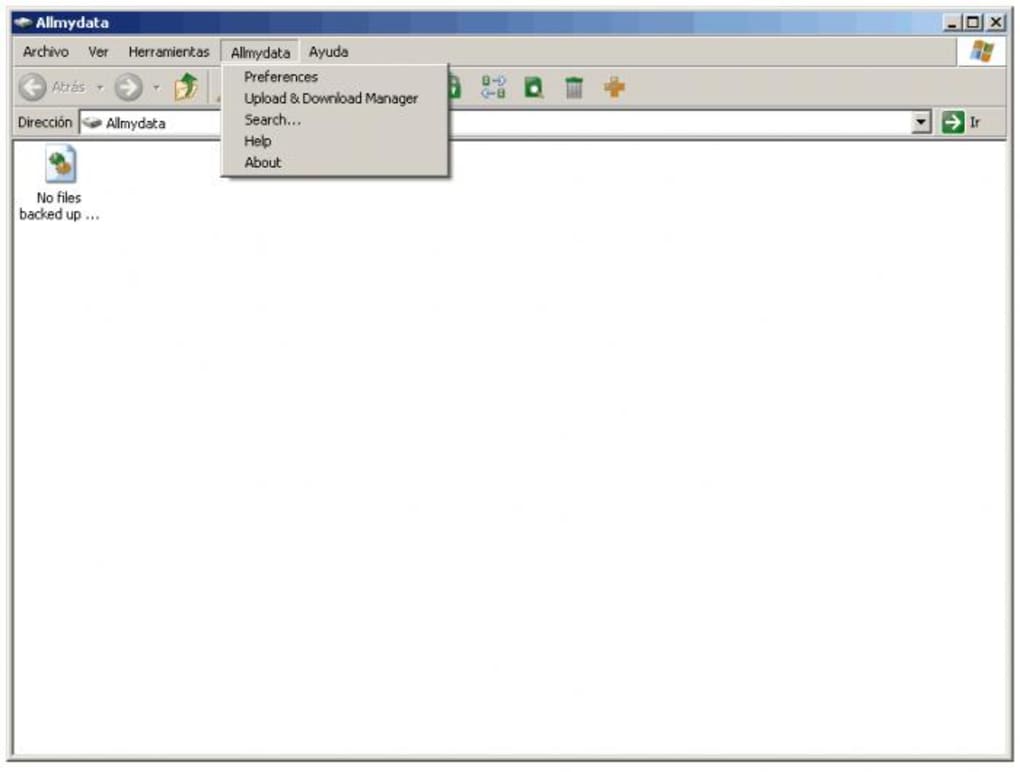
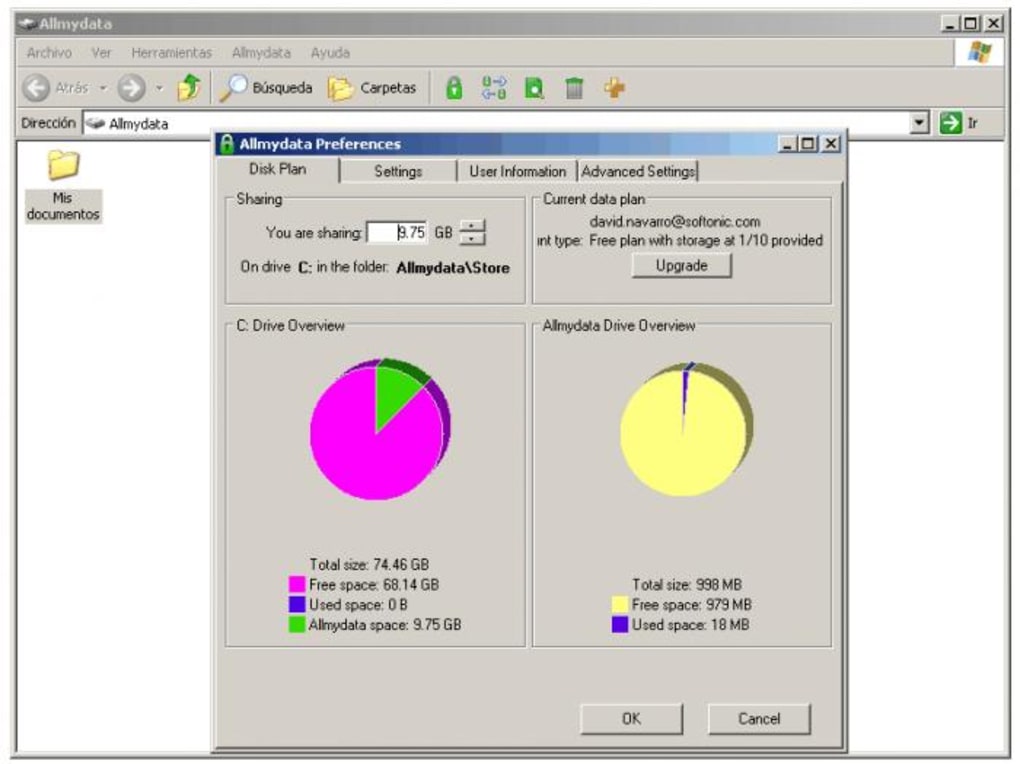
The client automatically detects your network connection and offers settings to restrict uploads to Wi‑Fi only, a useful option for users on limited data plans. For power users, the Preferences panel lets you configure bandwidth throttling, enable or disable automatic syncing for specific folders, and adjust notification settings. Once configured, simply drag files onto the Allmydata tray icon or use the “Add Files” button in the dashboard. The app will queue the files, encrypt them locally, and upload them to the cloud in the background. You can monitor progress in real time, and a notification will appear once the upload completes.
Pros & Cons, Frequently Asked Questions, and Final Thoughts
Pros
- Intuitive drag‑and‑drop workflow eliminates complexity.
- End‑to‑end encryption protects data from unauthorized access.
- Cross‑platform support ensures access from any device.
- Flexible pricing accommodates both casual users and power users.
- Version history and selective sync add layers of data safety.
Cons
- Upload speeds can be slower during peak internet usage times.
- Reliance on internet connectivity means no offline access to the cloud vault.
- Security, while strong, is still dependent on the provider’s infrastructure.
- Free tier storage (5 GB) may be insufficient for heavy users.
FAQ – Answers to Common Questions
Is Allmydata truly secure for sensitive documents?
Yes. Allmydata encrypts files on your device before they leave your computer, using AES‑256 encryption. The encrypted data is then stored on secure servers that comply with industry‑standard security certifications.
Can I recover a deleted file?
Deleted files are moved to a “Trash” folder for 30 days, after which they are permanently removed. You can restore them from the Trash within that window.
How does the versioning system work?
Every time you upload a file with the same name, Allmydata saves a new version while retaining the previous one for up to 30 days. You can view and restore any of those versions from the web dashboard.
Is there a limit to how many devices I can link to one account?
No strict limit exists; you can install the client on as many devices as you need, provided each device complies with the supported operating systems.
What payment options are accepted for premium plans?
Allmydata accepts major credit cards (Visa, MasterCard, American Express) and PayPal. Subscriptions are billed monthly or annually, with a discount for yearly commitments.
Conclusion – Should You Download Allmydata?
Allmydata delivers a balanced mix of simplicity, security, and affordability that makes it a solid choice for anyone looking to back up important files without the hassle of complex configuration. While it can’t fully replace a local hard‑drive for ultra‑critical data, its encrypted cloud vault, version history, and seamless sharing capabilities provide a reliable safety net for everyday use. If you’re frustrated with limited storage on your laptop or need a hassle‑free way to keep documents synchronized across multiple devices, download Allmydata today and enjoy peace of mind knowing your files are protected in the cloud.







